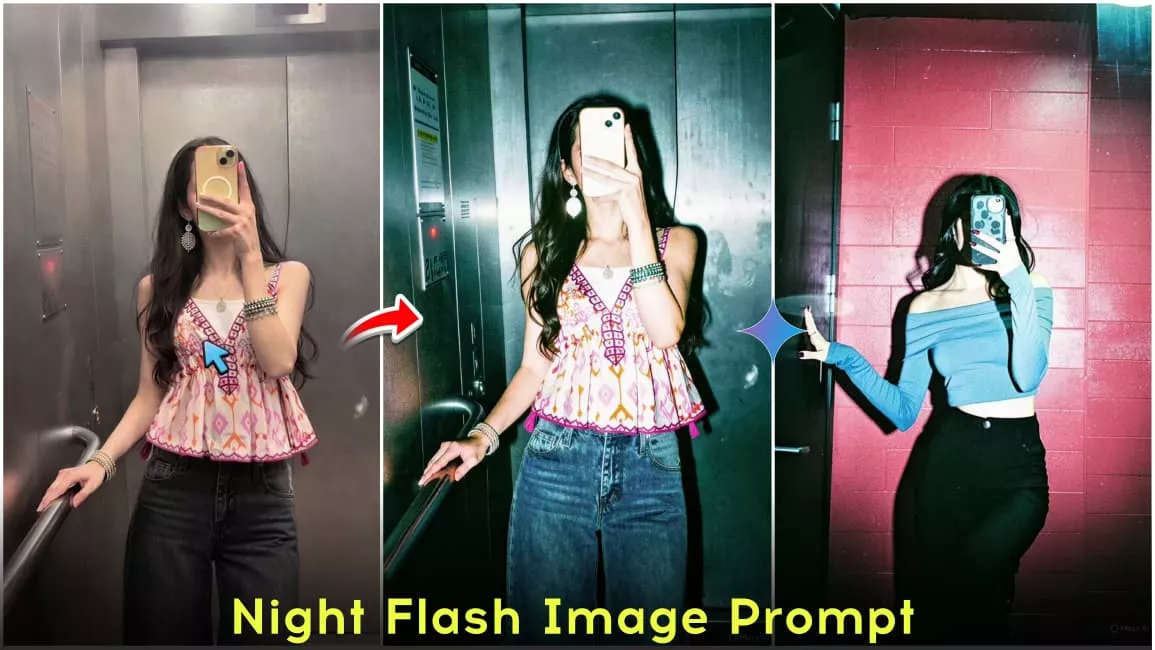
Flashlight Effect AI Photo Editing Prompt – Friends, right now on Instagram many creators are using ChatGPT to create stunning AI photos. A new editing style called Flashlight Effect AI Photo Editing is trending a lot on social media. In this style, photos are created with high contrast and direct flash, giving them a bold fashion/editorial look. This type of photo is going extremely viral these days. Almost every creator—big or small—is trying this trend, and their posts are getting millions of views. That’s why in this article, I will show you how you can also create this flashlight effect photo using a simple prompt. So make sure to read everything carefully.
Complete Information About Flashlight Effect AI Photo Editing Prompt
Friends, this editing style is based on high-contrast direct flash lighting, which turns a normal photo into a dramatic and cinematic one. When you use the prompt in ChatGPT, your image gets sharp highlights and deep shadows. The face usually gets a warm tone, while the background has a cool teal color grading. Overall, the image looks slightly desaturated but very stylish. If you already do photo editing, you know that high contrast and slight overexposure make a photo look bold and eye-catching. After generating the image with AI, if you further enhance it using any editing app, it can look like a 90s fashion magazine photo—sharp, glossy, and cinematic. We have provided multiple prompts so that if one doesn’t give the perfect result, you can try another. One important thing to remember is that these prompts work best on normal photos, not selfies.
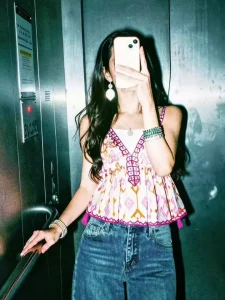
Apply a high-contrast direct flash style with harsh frontal lighting, creating bright highlights and deep shadows. Slightly overexpose highlights while keeping the subject sharp. Use a cool teal tone in shadows and midtones, with slightly warm but desaturated skin tones. Reduce saturation, boost contrast for a punchy editorial look, and add subtle cyan/green shifts with slightly bluish whites.
Add heavy fine film grain, mild shadow noise, slight chromatic aberration, and a subtle vignette. Create a glossy 90s fashion editorial look with crushed blacks and lifted highlights, blending a clean digital and gritty analog feel.
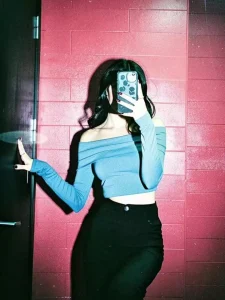
High-contrast harsh direct flash with strong frontal lighting, bright highlights, and deep shadows. Slight highlight overexposure with sharp subject detail. Cool teal shadows/midtones, slightly warm desaturated skin, low saturation, high contrast, subtle cyan-green tones, and bluish whites.
Add heavy fine grain, slight noise, chromatic aberration, and a soft vignette. Create a glossy 90s editorial look with crushed blacks and lifted highlights, mixing digital sharpness with analog grit.
Do not alter face or body position.
Will This Style Look Good On Every Photo?
No friends, this style will not suit every photo. Since it uses strong contrast and direct flash, it works best on:
- Portrait shots
- Fashion-style photos
- Street or urban photography
If you use this effect on family photos, romantic shots, or nature images, it may look unnatural and over-edited. For example, greenery backgrounds can lose their natural colors in this style.
For best results, click your photo like this:
- Stand and take a proper portrait shot
- Use simple background (wall, street, etc.)
- Try attitude poses (side look, hands in pocket, etc.)
- Use mobile flash in evening or low light for harsh shadows
- Wear simple outfits like dark shirt or white t-shirt
This will give you the perfect “Instagram stylish vibe.”
Make Flashlight Effect AI Photo Using ChatGPT Prompt
Now let’s understand how to create this photo step by step:
- First, click a photo as per the tips given above
- Install or open ChatGPT
- Login with your email ID
- Go to the Create Image option
- Copy and paste the prompt in the chat box
- Upload your photo using the media option
- At the end of the prompt, write: “use this face, don’t change face”
- Click on Generate and wait for 1–2 minutes
- Your AI image will be ready
If the image does not appear, click on the three dots (menu) and go to the images section. From there, you can view and download your photo easily.
Final Thoughts
Friends, in this article I have explained how you can create a trending Flashlight Effect AI photo using simple prompts. This trend is currently going viral on Instagram, and if you use the right photo with the right prompt, you can create a very professional and eye-catching image. Right now, this style is in high demand, so don’t miss the opportunity. Try it today and upload your photo on social media—you might go viral too.